
Free weekly lesson plan template for Google Sheets
Write each lesson once, with its objective, materials and homework, and the Week Plan grid fills in by period and day. Change the Monday date to see any week. A Pacing tab shows how far through each unit you are.
Pro Want pacing, standards coverage, prep lists and sub plans too? See Lesson Plan Pro →| Period | Starts | Class | Monday | Tuesday | Wednesday | Thursday | Friday |
|---|---|---|---|---|---|---|---|
| Date | Oct 12, 2026 | Oct 13, 2026 | Oct 14, 2026 | Oct 15, 2026 | Oct 16, 2026 | ||
| 1 | 8:15 AM | Reading | Character traits with evidence | How characters change | Finding the theme | Theme vs. topic | Book club talk |
| 2 | 9:20 AM | Writing | Small moment ideas | Strong leads | Show, don't tell | Dialogue punctuation | Peer conference |
| 3 | 10:10 AM | Math | Multiply by 10s and 100s | Area model, 2-digit by 1-digit | Area model, 2-digit by 2-digit | Partial products | Quiz: Lessons 1-4 |
| Lunch | 11:25 AM | Lunch and recess | |||||
| 4 | 12:10 PM | Science | What is energy? | Speed and energy | Ramp lab day 1 | Ramp lab day 2 | Energy in collisions |
| 5 | 1:05 PM | Social Studies | The Northeast | Northeast resources | The Southeast | Southeast map work | Region postcard |
| Notes | Bus duty 7:45 | Staff meeting 3:30 | Library day | Fire drill 10:00 | Spirit day, wear school colors |
| Date | Period | Class | Unit | Lesson topic | Objective | Materials | Homework | Taught |
|---|---|---|---|---|---|---|---|---|
| Oct 12, 2026 | 1 | Reading | Unit 3: Character and theme | Character traits with evidence | Name a trait and back it with two details | Read-aloud book, trait chart | Read 20 min | |
| Oct 12, 2026 | 2 | Writing | Unit 2: Personal narrative | Small moment ideas | List three small moments worth writing | Heart map | Finish heart map | |
| Oct 12, 2026 | 3 | Math | Unit 3: Multi-digit multiplication | Multiply by 10s and 100s | Use place value to multiply by multiples of 10 | Base-ten blocks | Page 84 | |
| Oct 12, 2026 | 4 | Science | Unit 2: Energy and motion | What is energy? | Describe energy as the ability to cause change | Video clip, journals | None | |
| Oct 12, 2026 | 5 | Social Studies | Unit 2: Regions of the US | The Northeast | Name states and key features | Region map | None | |
| Oct 13, 2026 | 1 | Reading | Unit 3: Character and theme | How characters change | Compare a character at the start and end | Novel ch. 6-7, T-chart | Read 20 min | |
| Oct 13, 2026 | 2 | Writing | Unit 2: Personal narrative | Strong leads | Write two possible leads | Mentor text | None | |
| Oct 13, 2026 | 3 | Math | Unit 3: Multi-digit multiplication | Area model, 2-digit by 1-digit | Break a factor apart to multiply | Grid paper | Page 86 | |
| Oct 13, 2026 | 4 | Science | Unit 2: Energy and motion | Speed and energy | Explain how speed relates to energy | Ramps, toy cars | None | |
| Oct 13, 2026 | 5 | Social Studies | Unit 2: Regions of the US | Northeast resources | Link resources to jobs | Textbook p. 52-55 | None | |
| Oct 14, 2026 | 1 | Reading | Unit 3: Character and theme | Finding the theme | State a theme in a full sentence | Short story packet | Read 20 min | |
| Oct 14, 2026 | 2 | Writing | Unit 2: Personal narrative | Show, don't tell | Turn a telling sentence into a scene | Anchor chart | None | |
| Oct 14, 2026 | 3 | Math | Unit 3: Multi-digit multiplication | Area model, 2-digit by 2-digit | Use an area model for two 2-digit numbers | Grid paper | Page 88 | |
| Oct 14, 2026 | 4 | Science | Unit 2: Energy and motion | Ramp lab day 1 | Measure distance at three ramp heights | Ramps, meter sticks | None | |
| Oct 14, 2026 | 5 | Social Studies | Unit 2: Regions of the US | The Southeast | Compare climate with the Northeast | Region map | None | |
| Oct 15, 2026 | 1 | Reading | Unit 3: Character and theme | Theme vs. topic | Tell a theme apart from a topic | Sorting cards | Read 20 min | |
| Oct 15, 2026 | 2 | Writing | Unit 2: Personal narrative | Dialogue punctuation | Punctuate dialogue correctly | Practice slips | Dialogue page | |
| Oct 15, 2026 | 3 | Math | Unit 3: Multi-digit multiplication | Partial products | Record partial products in a list | Whiteboards | Page 90 | |
| Oct 15, 2026 | 4 | Science | Unit 2: Energy and motion | Ramp lab day 2 | Graph results and draw a conclusion | Lab sheet | Finish lab sheet | |
| Oct 15, 2026 | 5 | Social Studies | Unit 2: Regions of the US | Southeast map work | Label major rivers and cities | Blank maps | Finish map | |
| Oct 16, 2026 | 1 | Reading | Unit 3: Character and theme | Book club talk | Lead a group talk with text evidence | Book club roles sheet | None | |
| Oct 16, 2026 | 2 | Writing | Unit 2: Personal narrative | Peer conference | Give one star and one wish | Feedback form | Revise draft | |
| Oct 16, 2026 | 3 | Math | Unit 3: Multi-digit multiplication | Quiz: Lessons 1-4 | Show multiplication strategies | Quiz copies | None | |
| Oct 16, 2026 | 4 | Science | Unit 2: Energy and motion | Energy in collisions | Predict what happens when objects collide | Marbles, rulers | None | |
| Oct 16, 2026 | 5 | Social Studies | Unit 2: Regions of the US | Region postcard | Write a postcard from one region | Postcard template | None |
| Period | Starts | Ends | Class | Room | Minutes |
|---|---|---|---|---|---|
| 1 | 8:15 AM | 9:15 AM | Reading | Room 12 | 60 |
| 2 | 9:20 AM | 10:05 AM | Writing | Room 12 | 45 |
| 3 | 10:10 AM | 11:20 AM | Math | Room 12 | 70 |
| Lunch | 11:25 AM | 12:05 PM | Lunch and recess | Cafeteria | 40 |
| 4 | 12:10 PM | 1:00 PM | Science | Room 12 | 50 |
| 5 | 1:05 PM | 1:50 PM | Social Studies | Room 12 | 45 |
| Class | Unit | Lessons in unit | Planned | Taught | Still to teach | Unit done |
|---|---|---|---|---|---|---|
| Reading | Unit 3: Character and theme | 15 | 5 | 3 | 12 | 20% |
| Writing | Unit 2: Personal narrative | 12 | 5 | 3 | 9 | 25% |
| Math | Unit 3: Multi-digit multiplication | 18 | 5 | 3 | 15 | 16.7% |
| Science | Unit 2: Energy and motion | 15 | 5 | 3 | 12 | 20% |
| Social Studies | Unit 2: Regions of the US | 10 | 5 | 3 | 7 | 30% |
What's inside
- A printable week grid by period and day that fills in from your lesson list
- One row per lesson with unit, topic, objective, materials, homework and a Taught checkbox
- A Periods tab for your bell schedule, so times and classes appear on the grid for you
- Change one date to flip the grid to any week of the year
- A Pacing tab that shows lessons taught and still to teach in each unit
- Works in Google Sheets and Excel
How to use it
Download your copy
Click "Free download" to save the .xlsx file. It opens in Excel, or in Google Sheets: open a blank sheet (sheets.new) and choose File, then Import, then Upload.
Enter your bell schedule
On the Periods tab, list each period with its start time, end time, class and room. Keep lunch or planning periods in the list so the grid shows them.
Plan your lessons
On the Lessons tab, add one row per lesson with the date and period number. The Class fills in from your schedule. Add the unit, topic, objective, materials and homework.
Pick the week
On the Week Plan tab, type the Monday date in the Monday column of the Date row. The rest of the week and every lesson topic fill in. Add duties and reminders in the Notes row.
Tick off what you teach
Check Taught on the Lessons tab after each lesson. The Pacing tab shows how much of each unit is done and how many lessons are left.
Print the week
Open the Week Plan tab and use File, then Print, with landscape and fit to width. You get a one-page plan for your desk or a sub folder.
Tips
Keep periods consistent
The grid matches lessons by date and period. Use the same period names on the Lessons tab as on the Periods tab, like 1, 2 and 3.
Plan a unit at a time
Write all the lessons for a unit in one go, then sort the Lessons tab by date. Moving a lesson is just changing its date.
Write objectives students can read
Start each objective with a verb, like "Explain" or "Compare". You can copy it straight onto the board.
Make sub plans fast
The Materials and Homework columns plus the printed week grid cover most of what a substitute needs. Add room notes on the Periods tab.
Questions
Is this lesson plan template free?
Yes. Download the .xlsx file and open it in Excel or Google Sheets. There's no sign-up.
Can I print it?
Yes. The Week Plan tab is laid out to print on one landscape page. In Google Sheets choose File, then Print, and set the scale to fit width.
Does it work for middle and high school teachers?
Yes. Put each class period on the Periods tab, like "Period 3, Biology". Teachers with the same subject all day can name the classes by section, like "Bio A" and "Bio B".
How do I see next week?
Type the next Monday's date in the Date row of the Week Plan tab. Any lessons you've planned for those dates show up.
Why is a cell on the week grid empty?
No lesson on the Lessons tab matches that date and period. Check the date and that the period is typed the same way on both tabs.
Can I track standards?
Yes. Add a Standards column to the Lessons tab, or put the standard code in the Objective column.
Pro version
Lesson Plan Pro
Write each lesson once and get a printable week, a plan for each class, a prep list, a sub plan and a pacing calendar.
Write each lesson once
One row per lesson on the Lessons tab. The week grid, class plans, prep list and sub plan all fill in from it, so nothing gets typed twice.
A printable week
Pick any week and print a period-by-day grid from your bell schedule, with each lesson and objective, plus the homework for every class.
Stay on pace
List your units with dates and how many lessons your pacing guide gives them. A year-long calendar shows every unit, and each unit is marked on track or behind.
Track your standards
Tag lessons with up to two standards. The Standards tab counts how often each one was planned and taught and shows what you haven't covered yet.
Prep without the scramble
The Prep List gathers the materials and copies for the week, sorted by day and period, and flags what isn't done.
Sub plans in a minute
Type a date and print a sub plan: the day's schedule, each lesson, what to do, materials and your standing notes on routines, helpers and emergencies.
| Free | Pro |
|---|---|
| Week grid from a lesson list | Week grid from your bell schedule, with objectives |
| Pacing tab | Units with on track and behind flags, and a year calendar |
| · | Plan for each class, Monday to Friday |
| · | Standards coverage counts |
| · | Weekly prep and copies list |
| · | Printable sub plan for any day |
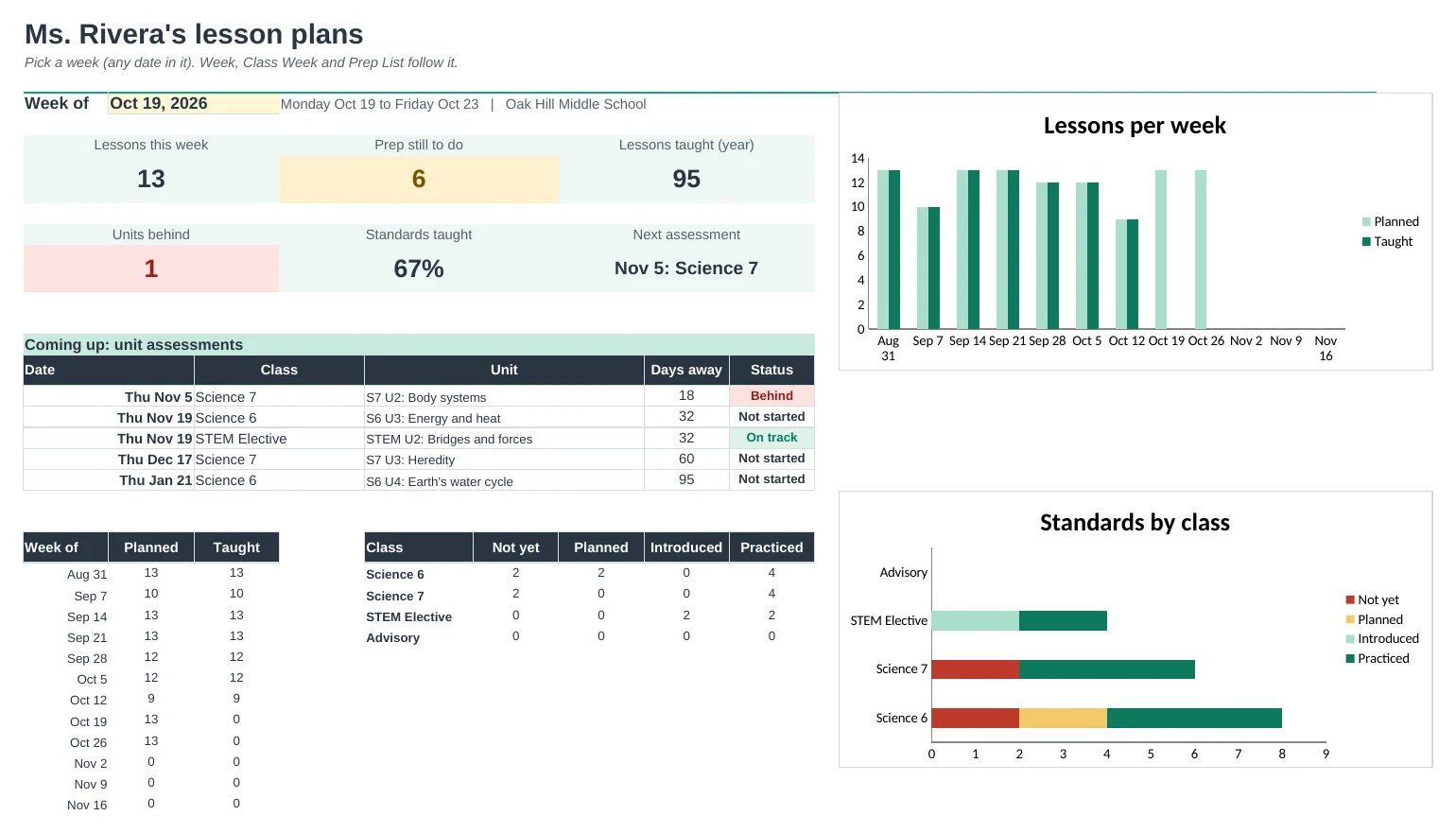
| · | Dashboard with assessments coming up and charts |
$19 one-time
11 tabs: Start Here, Dashboard, Week, Class Week, Lessons, Units, Pacing, Standards, Prep List, Sub Plan and Setup. You get two copies: one filled in with a sample science teacher's fall so you can see it working, and a blank one ready for your own.
Get Lesson Plan Pro for $19- Instant download after checkout
- Works in Google Sheets and Excel
- Yours to keep and reuse every year