
Free timesheet template for Google Sheets
Type in when you started, when you finished and how long your break was. The timesheet works out your hours for each day, totals each week, splits out overtime after 40 hours and shows what you should be paid. It covers a two-week pay period and handles overnight shifts.
Pro Want a timesheet for your whole team with overtime, approvals and client billing? See Timesheet Pro →| Date | Day | Start | End | Break (min) | Hours | Notes |
|---|---|---|---|---|---|---|
| Nov 2, 2026 | Mon | 8:00 AM | 4:30 PM | 30 | 8.00 | |
| Nov 3, 2026 | Tue | 8:00 AM | 5:00 PM | 30 | 8.50 | |
| Nov 4, 2026 | Wed | 8:00 AM | 4:30 PM | 30 | 8.00 | |
| Nov 5, 2026 | Thu | 7:30 AM | 5:30 PM | 30 | 9.50 | Stayed late for inventory |
| Nov 6, 2026 | Fri | 8:00 AM | 4:00 PM | 30 | 7.50 | |
| Nov 7, 2026 | Sat | 9:00 AM | 2:00 PM | 0 | 5.00 | Covered Sam's shift |
| Nov 8, 2026 | Sun | 0.00 | Day off | |||
| Week 1 total | 46.50 | |||||
| Nov 9, 2026 | Mon | 8:00 AM | 4:30 PM | 30 | 8.00 | |
| Nov 10, 2026 | Tue | 8:00 AM | 4:30 PM | 30 | 8.00 | |
| Nov 11, 2026 | Wed | 0.00 | Veterans Day, store closed | |||
| Nov 12, 2026 | Thu | 8:00 AM | 4:30 PM | 30 | 8.00 | |
| Nov 13, 2026 | Fri | 8:00 AM | 4:30 PM | 30 | 8.00 | |
| Nov 14, 2026 | Sat | 10:00 PM | 6:00 AM | 30 | 7.50 | Overnight stocktake |
| Nov 15, 2026 | Sun | 0.00 | Day off | |||
| Week 2 total | 39.50 | |||||
| Pay period total | 86.00 |
| Item | Week 1 | Week 2 | Pay period |
|---|---|---|---|
| Hours worked | 46.50 | 39.50 | 86.00 |
| Regular hours | 40.00 | 39.50 | 79.50 |
| Overtime hours | 6.50 | 0.00 | 6.50 |
| Regular pay | $900.00 | $888.75 | $1,788.75 |
| Overtime pay | $219.38 | $0.00 | $219.38 |
| Total pay (before tax) | $1,119.38 | $888.75 | $2,008.13 |
| Days worked | 6 | 5 | 11 |
| Setting | Value |
|---|---|
| Name | Jordan Lee |
| Hourly rate ($) | 22.5 |
| Overtime after (hours per week) | 40 |
| Overtime rate (times hourly) | 1.5 |
What's inside
- Daily hours worked out from start time, end time and unpaid break minutes
- Overnight shifts count correctly, like 10:00 PM to 6:00 AM
- Two weeks per sheet, with a total for each week and the whole pay period
- Overtime split out per week once you pass 40 hours, at time and a half
- Regular pay, overtime pay and total pay before tax from your hourly rate
- Type the first date once and the other 13 days fill in, with the weekday shown
How to use it
Download your copy
Click "Free download" to save the .xlsx file. It opens in Excel, or in Google Sheets: open a blank sheet (sheets.new) and choose File, then Import, then Upload.
Enter your pay details
On the Pay Settings tab, add your name and hourly rate. Change the overtime limit or rate if your job uses different rules.
Set the first day
Type the first day of your pay period in the top Date cell. The rest of the two weeks fills in below.
Log each shift
Enter start and end times like 8:00 AM and 4:30 PM, plus your unpaid break in minutes. Leave days off blank.
Check your pay
The Summary tab shows hours, overtime and pay for each week and the whole period. Compare it with your pay stub.
Start the next period
Duplicate the tab, change the first date and clear the times. Or keep one copy per pay period in the same file.
Tips
Log it the same day
Write your times down before you leave work. Hours you rebuild from memory at the end of the week are often wrong.
Count only unpaid breaks
If your breaks are paid, leave Break at 0. Only time you aren't paid for should come off your hours.
Check your local overtime rules
The sheet uses overtime after 40 hours a week. Some states and provinces use a daily limit or a different weekly number, so set Pay Settings to match.
Keep the notes
A short note like "covered a shift" or "store closed" makes it easy to explain any difference with your paycheck.
Questions
How do I enter times in Google Sheets?
Type them like 8:00 AM or 16:30. Google Sheets reads both. Make sure there's a colon, or it won't be treated as a time.
Does it handle shifts that end after midnight?
Yes. If the end time is earlier than the start time, the sheet assumes you worked past midnight and counts the hours correctly.
How is overtime worked out?
Each week is checked on its own. Hours over the limit on Pay Settings (40 by default) count as overtime and are paid at the overtime rate, 1.5 times by default.
Can I use it for a weekly pay period?
Yes. Just fill in week 1 and leave week 2 blank. The Week 1 column on the Summary tab is your weekly total.
Does the pay include taxes?
No. It shows pay before tax and any deductions, so your take-home pay will be lower.
Does it work in Excel?
Yes. Download the .xlsx file. All the formulas, including overnight shifts, work in Excel.
Pro version
Timesheet Pro
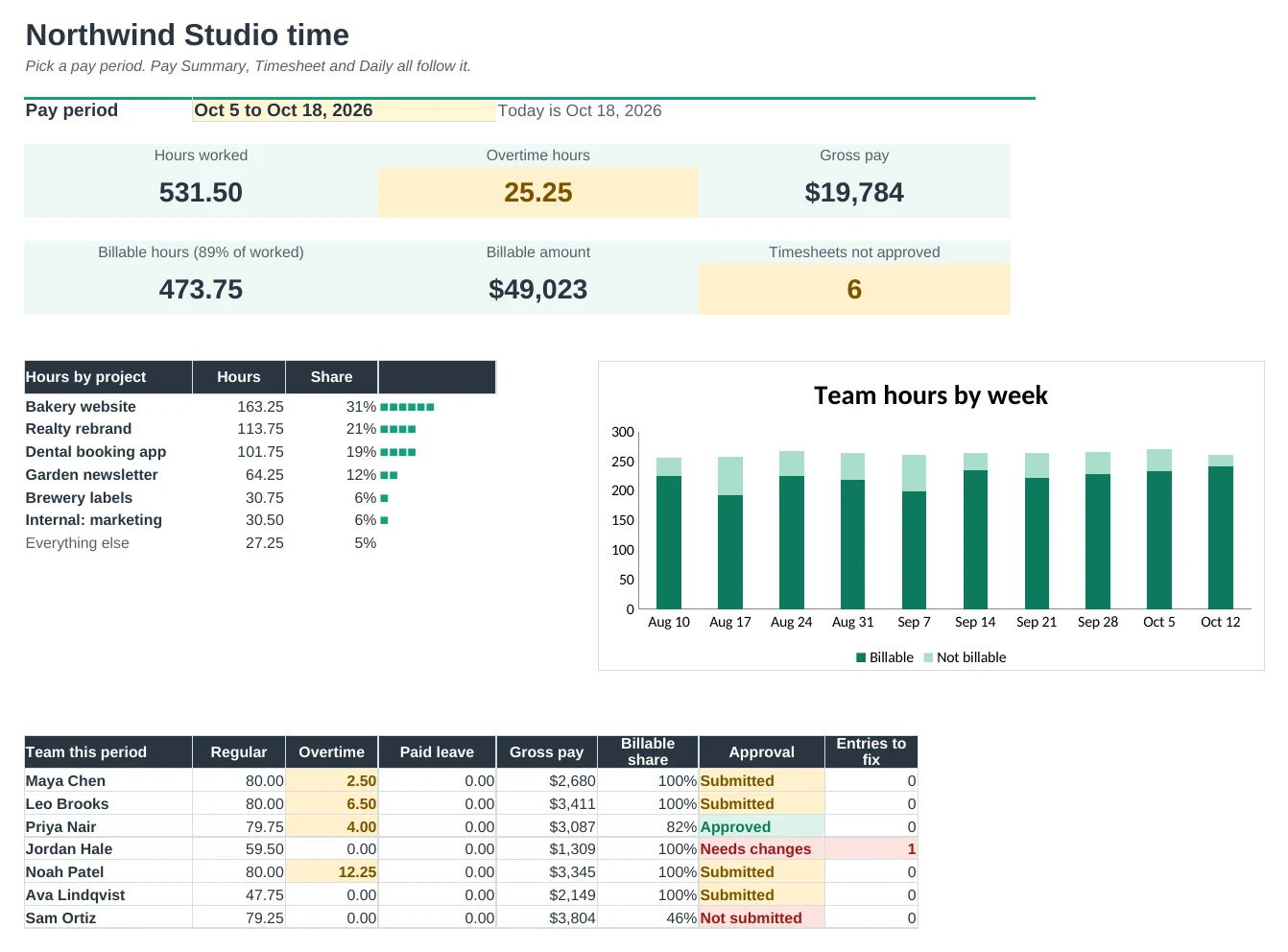
One time log for your whole team that works out hours, overtime and pay for any pay period, tracks approvals and shows what you can bill each client.
Everyone in one log
Each person adds their start and end times, breaks and project from dropdowns. Hours fill in, overnight shifts included, and missing end times are flagged.
Overtime worked out properly
Set your own rules: over 40 hours a week, over a set number of hours a day, or both. Vacation, sick and holiday hours are paid but don't push anyone into overtime.
Payroll in one place
Pick a pay period, weekly to monthly. Pay Summary lists each person's regular, overtime and leave hours and gross pay, ready for your payroll provider.
Approvals you can see
People mark their timesheet Submitted, approvers mark it Approved or Needs changes. The Dashboard shows who is still waiting.
A printable timesheet
Print or save any person's pay period with in and out times, breaks, overtime, pay and signature lines.
Bill clients for your time
Client Billing shows billable hours and amounts per project for any dates, how much of each budget is used, and time you haven't invoiced yet.
| Free | Pro |
|---|---|
| One person, two weeks | Your whole team, any pay period |
| Overtime over 40 hours a week | Weekly and daily overtime rules you set |
| Pay worked out | Pay summary for everyone, with leave pay |
| · | Approvals: Submitted, Approved, Needs changes |
| · | Printable timesheet with signature lines |
| · | Billable hours and amounts per client and project |
| · | Project budgets and time not invoiced yet |
| · | Dashboard with weekly hours chart |
$19 one-time
9 tabs: Start Here, Dashboard, Time Log, Timesheet, Pay Summary, Client Billing, Approvals, Daily and Setup. You get two copies: one filled in with a sample seven-person studio so you can see it working, and a blank one ready for your own team.
Get Timesheet Pro for $19- Instant download after checkout
- Works in Google Sheets and Excel
- Yours to keep and reuse every year